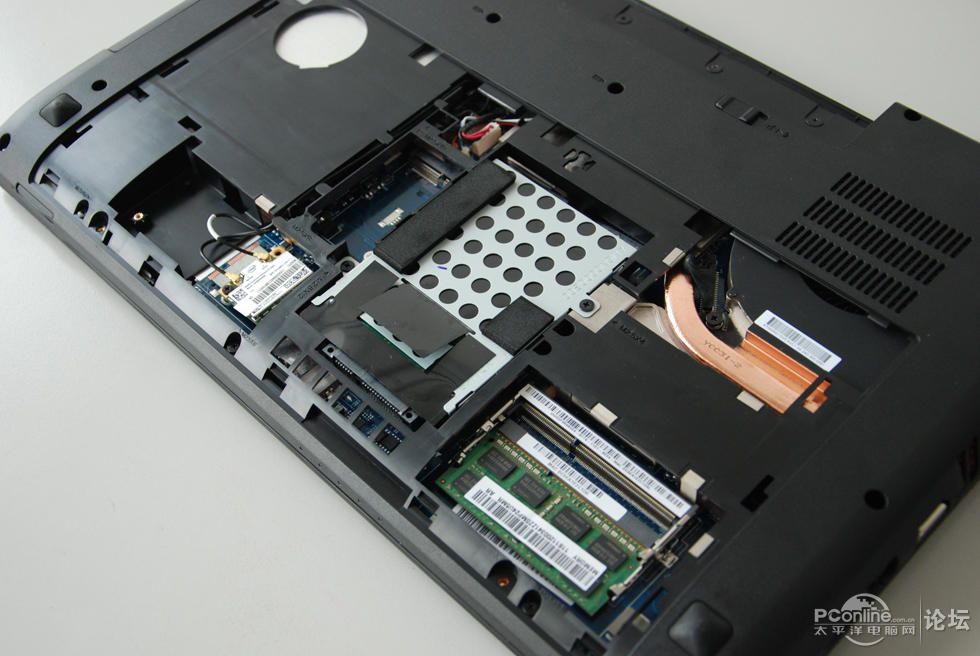
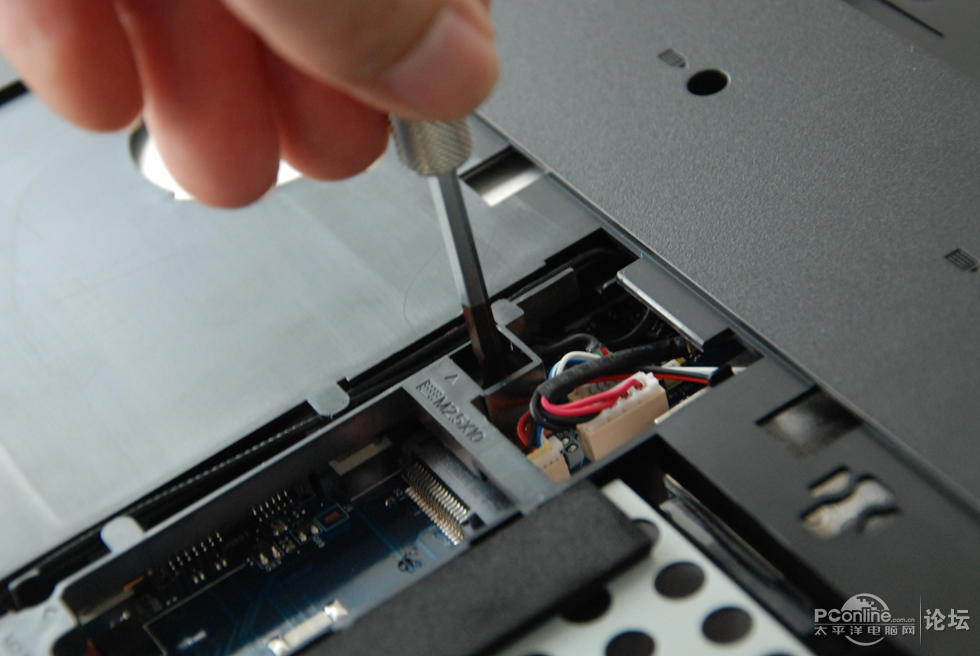
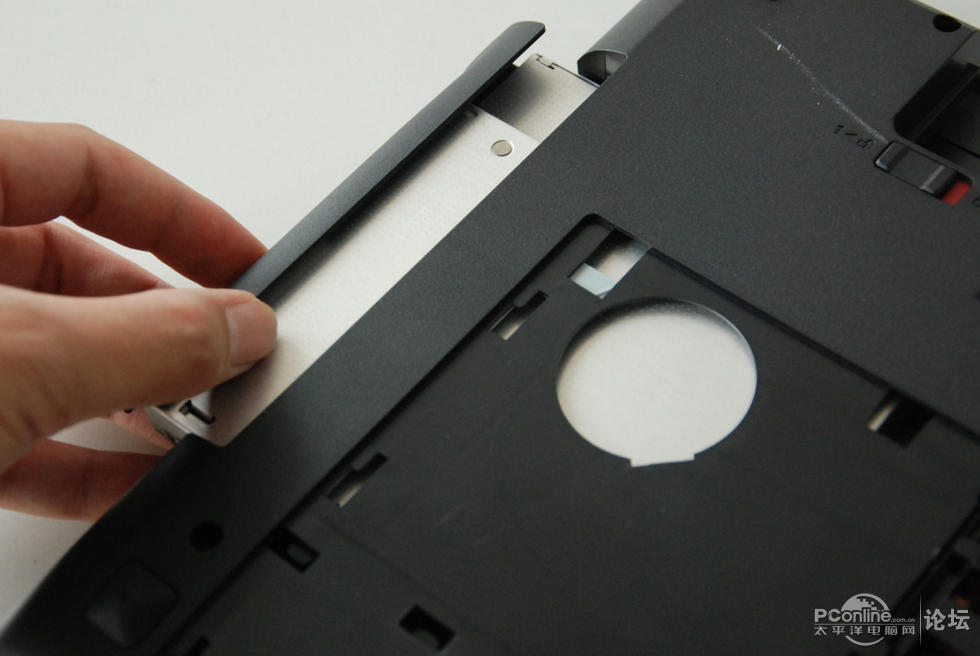
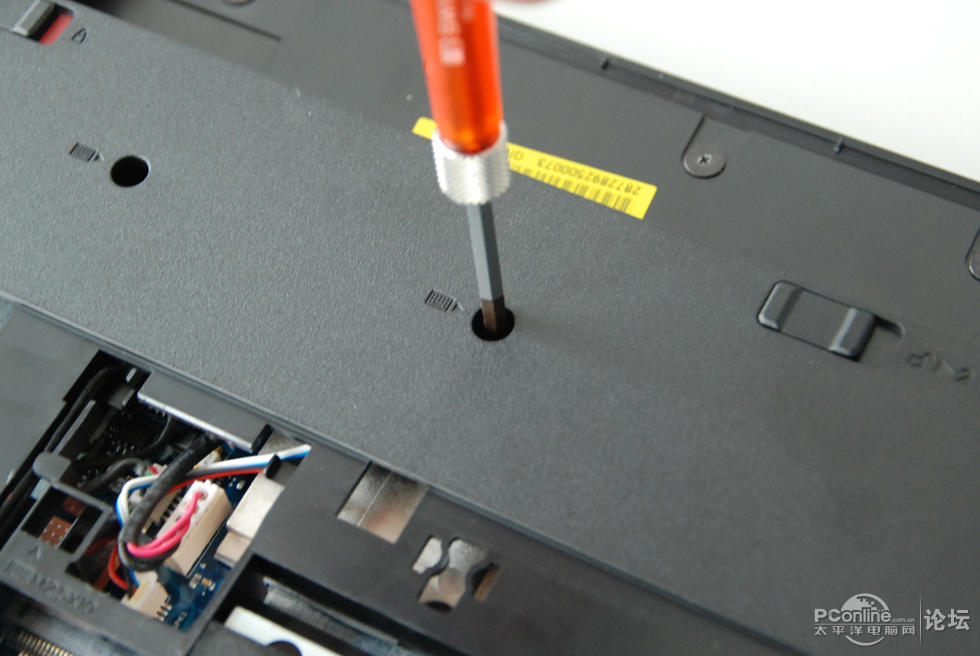
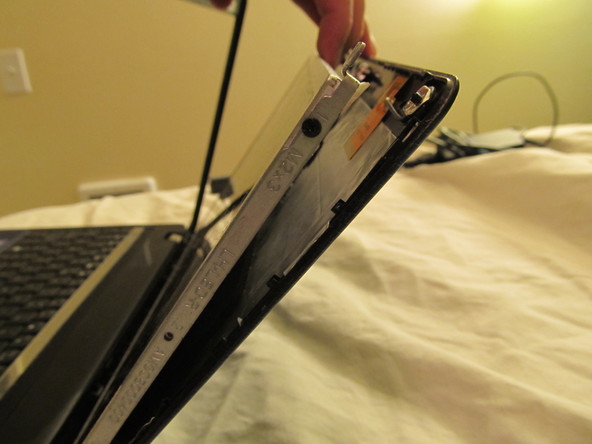
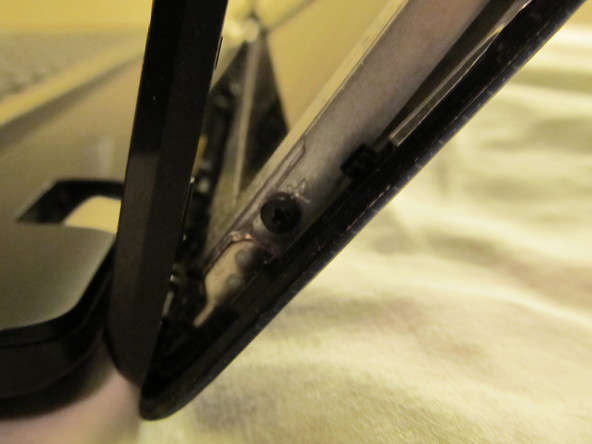
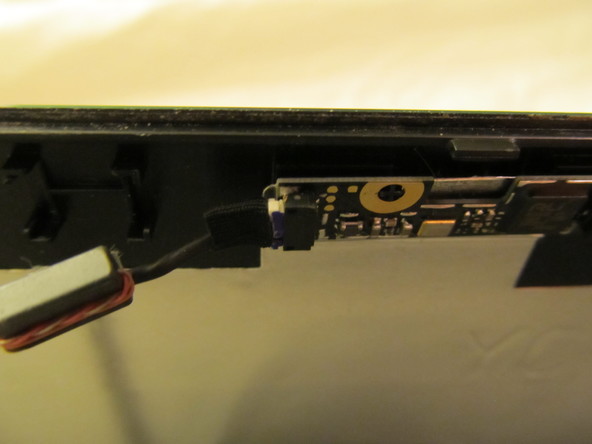
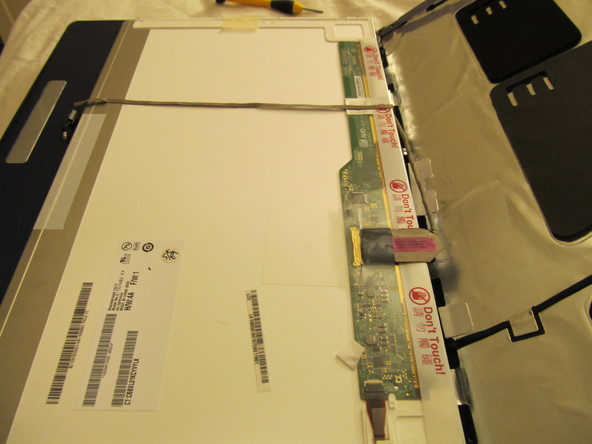
Samsung NP-RV520I Dark Screen / Dimmed Screen

Your notebook can have a dark or dimmed screen under the following circumstances:
The brightness level may have been changed.
The power saving function in Samsung Battery Manager darkened / dimmed the screen after a period of inactivity.
The notebook is experiencing a driver, software or hardware failure.
To remedy the issue, follow these steps:
1. Press and hold the Fn key, and then press the Up arrow. This increases the
brightness if it has been turned down.
Note: Please make sure that Easy Display Manager is running. If it is not running,
then the above keystroke may not function. Click here to view the Software
troubleshooting section of this guide. Easy Display Manager can be located under
Management Functions.
2. Press and hold the Fn key, and then press the F5 key. This turns on the backlight if
you have accidentally turned it off.
3. Check the settings for Samsung Battery Manager. When in use Samsung Battery
Manager will darken / dim the screen on the notebook to conserve battery life. Click
here to view the Software troubleshooting section of this guide. Samsung Battery
Manager can be located under Management Functions. Please troubleshoot using

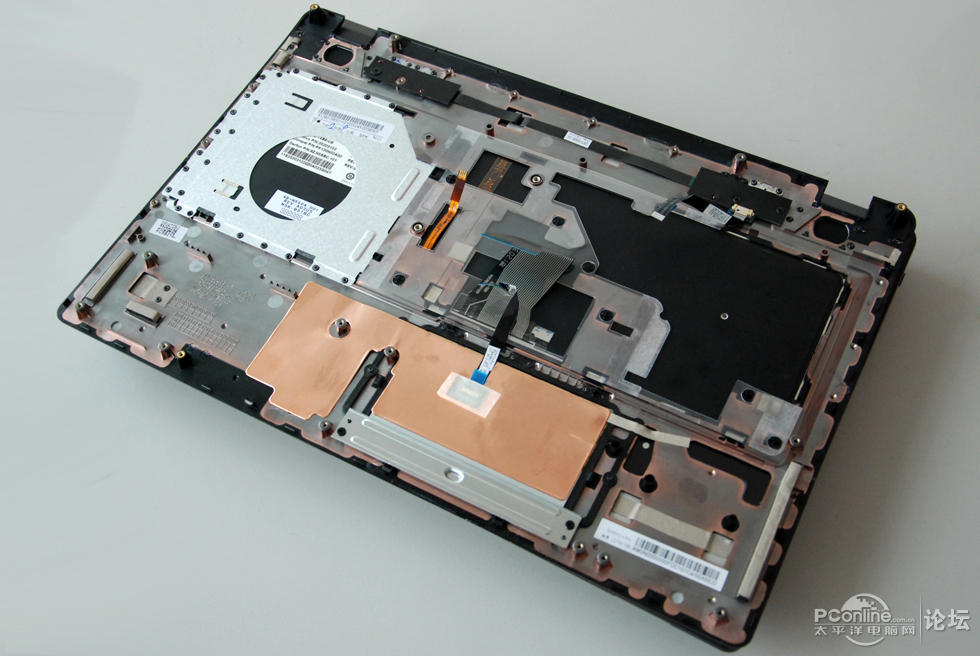
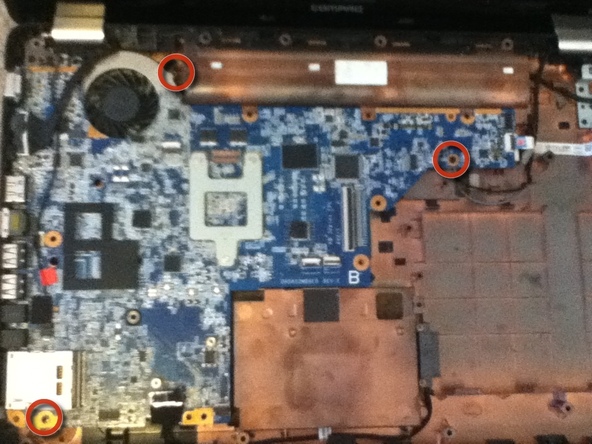
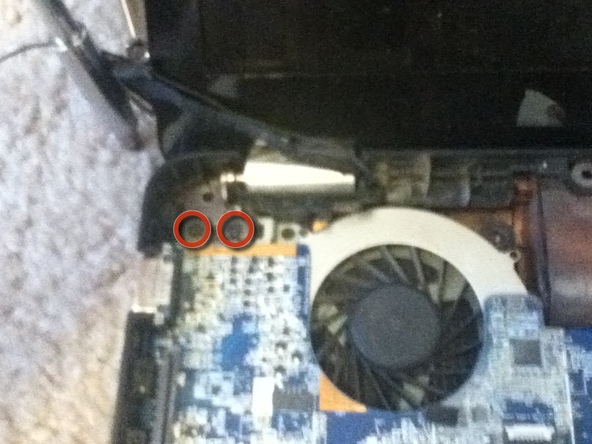
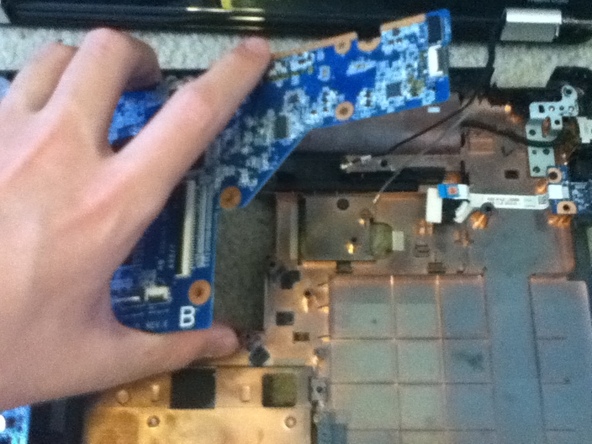
Other samsung rv520 laptop part replacement: screen hinges, lcd video cable, keyboard, cpu cooling fan,

Posted in samsung laptop part | Tagged | Leave a comment

cooling fan not working on HP Pavilion g7 series

QUESTION:

hp pavilion g7 1317 cl notebook Pc Product# a7a38ua  Windows 7

received message that my cooling fan is not working and could damage my data and computer.  How do I fix this?

ANSWER:

Did you think your an idiot, never crossed my mind. In a hurry novice, yes.

How to clean the fan ports:http://www.laptopparttips.info/308/

How old is this unit? Still under warranty?

If the fan is not working, you need to replace is ASAP.

Finding hp pavilion g7 1317 laptop repair parts and HP laptop parts can be difficult so we have done some of the searching for you. Use the links at the bottom of the page to compare prices for the parts you need.

Check the returns policy and warranty terms for the supplier before you order, this will make things easier if you order the wrong part.

We’ve outlined the main points to be mindful of below.

- Find out if the parts supplier charges a fee if you return a part. They may call it a ‘restocking’ fee and can charge a percentage or a flat fee.

- Is there a time limit on returning a part?

- Who picks up the freight and shipping charges for a return or exchange?

- The vendor will usually say they’re not responsible for any damage or defects caused by improper handling, storage or unauthorised repair. This is fair enough, after all they can’t control what you do with a part once you receive it but if you’re doing your own repair at home then you aren’t an authorised repairer and you’ll be responsible if you damage a part by doing the wrong thing.

If you ensure you can work within these requirements then you should be ok.

hp pavilion g7 1317 laptop repair parts – laptop screen hinges replacement

hp pavilion g7 1317 laptop repair parts – laptop cpu cooling fan replacement

hp pavilion g7 1317 laptop repair parts – laptop battery replacement

hp pavilion g7 1317 laptop repair parts – laptop video cable replacement

hp pavilion g7 1317 laptop repair parts – laptop keyboard replacement

Posted in laptop cpu fan repair | Tagged | Leave a comment

Symptoms of heat issues and causes of excessive heat

The following list describes some of the issues caused by too much heat in the computer:
Games stop responding during play.
Windows stops responding during use.
Fans inside the computer become louder because they are spinning faster to remove the heat.
When starting the computer, it sometimes stops Samsung N128 Keyboard at a black screen and does not open into Windows. Windows usually stops responding when it does open.
Mouse and keyboard stop responding.
Windows 7, Vista, XP – Computer unexpectedly restarts or displays a blue fault message.
Windows 95, 98, and Me – Frequent Fatal Exception, Samsung N145 Keyboard Illegal Operation, or General Protection Fault error messages occur in several software programs.

NOTE:These errors are not predictable. If these errors occur only in one software program, the issue is probably related to that software program and is not heat related.
The following list describes some causes of excessive heat:
Dust inside the computer.
A new component, such as a hard drive, is added. The extra component causes the power supply to work harder and generate more heat. HP g62-340us fan Extra heat also radiates off the new component and adds to the temperature inside the case.
Over time, some cooling fans might slow down and wear out, depending on the usage of the computer.
High ambient room temperature.
Step 1: Remove dust and lint by cleaning vents

Notebook PCs have vents located around the case to allow air to flow through the case. If these vents become clogged or heat generating parts become covered with dust, Samsung NB30 Keyboard the fan cannot cool the components properly. Lint and dust accumulation prevents air from flowing around the cooling fins and causes the fan to work harder. If there is dust in the vents, you should clean the computer by blowing out the dust from around the fan and heat shield. This prevents dust from accumulating.
Figure 1: Dust accumulation

Figure 2: Dust accumulation around fan

CAUTION:Ensure that the computer is turned off and the AC adapter is disconnected before spraying with compressed air to prevent damage to the notebook PC.
Use a can of compressed air (a vacuum cleaner on blow function or a hair dryer in cool air mode can also be used, though the can of compressed air is better suited for this task) to remove dust from the computer’s vents and prevent overheating. Samsung NB20 Keyboard Removing the dust increases the air flow to improve cooling and allows the fan to run quieter.
The cooling vents are located in various places depending on the PC model. You can identify the vents by looking for the copper or black fins inside the vents. You should also blow the compressed air into Samsung N148 Keyboard other openings such as the fan intake vent to help keep the air circulating and prevent dust from accumulating on components.
Figure 3: Side vent

Figure 4: Rear vent

By taking this action periodically as a preventive measure, you can greatly reduce the possibility of component damage and prevent the slowdown of the computer’s performance.
Step 2: Ensure proper space for ventilation

Proper ventilation for the system is Samsung N148-DP03 Keyboard important for workstation operation. Follow these guidelines to ensure adequate ventilation:
Keep the computer upright and on a sturdy, level surface.
Provide at least 15.25 centimeters (6 inches) of clearance around each vent.
If the computer is being used at very high altitudes, above 1500 meters (5000 feet), take extra care to keep the computer cool. The maximum limit of 35 degrees Celsius (95 degrees Fahrenheit) drops 1 degree Celsius (~34 degrees Fahrenheit) every ~300 meters (1000 feet) of altitude. Samsung N148-DP04 Keyboard 
Step 3: Place the computer in a cooler room

A small difference in temperature might be all that is needed to prevent a component from failing. Move the computer to a cooler room in the house or office. If this is not an option, continue with the next step.
Step 4: Test for hardware failure

If issues persist after cleaning the vents and moving the computer to a cooler room, a hardware component might be damaged. Samsung N150 Keyboard Test the computer to see if any hardware, such as memory, the processor, or the graphics hardware, have failed. Most HP and Compaq notebook computers have diagnostic software to verify hardware failures.

Posted in Laptop | Leave a comment

Plug a Guitar Into a Laptop & Reset a Gateway Laptop

Plug a Guitar Into a Laptop

Decide whether you want a pedal with a digital out or software emulated equipment. Digital pedals sound better than software emulated equipment, but they can get very pricey. There is free software out on the internet to emulate the sounds of guitar amps and pedals.
Buy a quarter-inch jack to 3.5mm jack (or USB) cable. This will allow you to plug your guitar straight into your computer. toshiba satellite c855 keyboard If you have a pedal with a digital out, plug your guitar into the pedal, then plug the pedal’s digital out into the computer.
Buy a monitor. You will need either a speaker or headphones to be able to hear yourself playing.
Download recording software. If you are on a Mac, you can use Garageband. Otherwise, unless you have purchased other software, you can use a plethora of freeware programs such as Audacity.

Plug your headphones / speakers in the output jack of your computer and set your recording software up to monitor the instrument sound back out to the headphones / speakers. From here, you will need to consult your software’s documentation to set this up.
Adjust the volume recording level of your sound input. Make sure your guitar isn’t clipping. Most programs will indicate if you are clipping by turning the volume bars red once they have reached clipping point. This must be adjusted at the operating system level. toshiba satellite c870 keyboard Find a good guitar sound. Unless you are very familiar with the pedal / software you are using, it will take time to find a good sound that you are comfortable playing and recording with.
Press record and play! For best results, count yourself in before playing.
Consider the next step. Now that you’ve taken your first steps into recording, you may want to start planning the next pieces of equipment that you wish to invest in.

Reset a Gateway Laptop

Copy all important data if possible.

Before resetting your Gateway laptop, you need to save all important and pertinent information if you can. (This, of course, may not be possible if the computer is completely frozen or crashed.) Once the laptop has been reset, you will not be able to access these documents, photos, and other information.
If you were not able to make recovery discs because your laptop doesn’t have a recordable drive, you could also copy them to your network.
Most information that is currently saved on the laptop and which you wish to retain can be saved on a flash drive. Larger amounts of information, or that which you want to have duplicate copies of, toshiba satellite c875 keyboard can also be saved on a CD-R or DVD-R disc. It is important to note, however, that a CD/DVD burner is required when saving documents on CD-R or DVD-R discs.

Locate the reset disc and any other rebuilding and reformatting discs you have.

All new Gateway laptops are sold with all the software tools loaded on their hard drives that you’ll need to restore your system. Ideally, you should have made a disc of these reset tools when you first opened your new Gateway. toshiba satellite l855 keyboard You also were able to create driver and applications recovery discs from your Gateway laptop’s hard drive. These are the discs you’ll need to reset your Gateway laptop now, as they contain device drivers, Windows XP system tools, and other programs.
If you cannot locate the recovery discs, you may be able to purchase what you need at an electronics stores. In addition, reset discs are occasionally sold online through Internet auction sites.

Reset the computer.
Start by placing the reset disc into the disc drive of your computer. Any windows which appear can be closed at this time. Restart your computer.
When you have restart the computer, you will see a window that says “Press any key to boot from CD.” Select “OK” to continue resetting your computer.
You will next be asked “Where do you want to install Windows?” In most cases, private Gateway owners will want to have Windows installed on the primary drive. toshiba satellite l875 keyboard Select the option labeled “Primary,” and hit “Continue.” Pressing this series of buttons will instruct the computer to erase all of the material currently on your hard drive, as well as to re-install the appropriate operating system.

Examine the computer.
Once all the previous steps are complete, follow the steps listed above to ensure that your Gateway laptop has been completely reset and the operating system re-installed. However, it is still important to evaluate the computer for any signs of damage. Surfing the Internet is a great way to test the functionality of a Gateway laptop. toshiba satellite l850 keyboard If the Internet speed is greatly increased, chances are that the resetting process was a success. If the Internet is still relatively slow, you may have to repeat the resetting process.

Posted in Laptop Part | Tagged , , | Leave a comment

Asus EEE PC 1215N Series Laptop Review

The Asus Eee PC 1215N is a netbook that doesn’t look like a netbook.

Like its predecessor, the Eee PC 1201N, the 1215N offers a bright 12.1-inch LCD display with a native resolution of 1366 by 768 pixels. That moves the Asus from netbook to entry-level ultraportable, but the internals are all netbook-class components–albeit a high-end netbook.

The CPU is now the Intel Atom D525, a dual-core processor supporting Intel’s hyperthreading technology, typically found in small “nettop” desktop computers. It allows the system to handle up to four simultaneous process threads. The clock rate is also juiced up slightly compared to older Atoms, to 1.8GHz.

Although the D525 is a 64-bit-capable CPU, Asus ships the 1215N with a 32-bit version of Windows–Windows Home 7 Premium, which is a step up from most netbooks. Using a 32-bit OS makes sense in light of the 1215N’s 2GB of memory, even though the D525′s memory controller can support up to 4GB of RAM.

Asus builds the 1215N on top of an Nvidia Ion chipset, which offers more robust graphics capability than the integrated Intel GMA 3150. Graphics switch automatically between the Intel integrated graphics and the discrete GPU thanks to Nvidia’s Optimus technology. Despite having a faster, dual-core CPU and Ion chipset, the 1215N’s battery life lasts 5 hours, 24 minutes, over an hour better than that of the older 1201N.

The asus eee pc 1215n keyboard is also quite good, with the typing keys nearly full-size. Even better, each alphanumeric key has a slight depression, easing touch typing and making this one of the better keyboards I’ve used in this class of machine. The trackpad is another story. The pad itself is twitchy, and causes the mouse cursor to jump around, seemingly completely at random. The pad buttons require excessive pressure. You might want to get a laptop mouse if you will be using the 1215N extensively.
The larger display is great for normal desktop use–the higher resolution helps considerably when creating or editing documents. However, video proved to be disappointing. The Nvidia Ion graphics are capable of handling high-definition video quite well, and the HD video clips I viewed looked great, as did standard-definition video. But when I looked at video sequences with lots of action–sports, for example–the motion smearing on the LCD proved highly distracting. Viewing angles are also typically bad, but most users will be sitting in the sweet spot, anyway.

Audio turned out to be a pleasant surprise. As you might expect, the speakers offer zero bass content. But the overall tonal balance was mostly clean on vocal and acoustic instrumental content. Volume levels were quite loud for a small laptop as well. For more serious audio, you’ll still want headphones, but the speakers seem a cut above most small laptop speakers.

Performance is pretty much on a par with most netbooks, except for the scores on PC World’s game tests, which were boosted by the Ion graphics. Still, this laptop is good only for casual gaming, at best.

The unit includes plenty of ports. Two USB 2.0 ports and fast (10/100) ethernet and audio jacks are on the right side. A third USB 2.0 connector, plus VGA and HDMI, are on the left side. The 1215N also includes 802.11n, making the Wi-Fi connection theoretically faster than wired, but actual throughput depends on router load and distance.

In the end, the Asus 1215N blurs the line between netbooks and lower-end ultraportables. The bigger screen and solid keyboard give it an edge over most netbooks, but it’s also bulkier and heavier than most (it weighs3 pounds, 6 ounces without the power brick). Performance lags behind many thin-and-light laptops, yet the price is higher than most netbooks (just under $500, as of 11/22/2010). The Asus 1215N really defies easy categorization. Users looking for long battery life, a decent display, and a great keyboard will be happy. Those looking for better performance–and willing to spend more–might take a look at ultraportables instead.

for more asus eee pc 1215n laptop part replacement

Posted in Laptop | Tagged , | Leave a comment

Keep Your Laptop Battery Going for As Long As Possible

Unplug battery after each use.

Use the hard drive more than the CD/DVD drive. As power consuming as hard drives are, CD and DVD drives use more power than hard drive. Even having one in the drive can be power consuming. They spin, taking power, Samsung RV518 LCD Cable even when they are not actively being used. Wherever possible, try to run on virtual drives.

Clean battery contacts more often. Clean your battery’s metal contacts every couple of months with a cloth moistened with rubbing alcohol. This keeps the transfer of power from your battery more efficient.

SHUT OFF the WiFi, if you don’t need it. Usually, there is a switch, but sometimes you have to do it in the WIFI config.Battery care. Do not leave a charged battery dormant for long periods of time. Once charged, Samsung RV515 LCD Cable you should at least use the battery at least once every two to three weeks.

Hibernate is better than standby on a laptop. Although placing a laptop in standby mode saves some power and you can instantly resume where you left off, it doesn’t save anywhere as much power as the hibernate function does.Hibernating a laptop will actually save more power as it will completely shut down itself .

Defragging your hard drive regularly. The faster your hard drive does its work the less demand you are going to put on the hard samsung rv520 lcd cable drive and your battery. Make your hard drive as efficient as possible by defragging it regularly. In Windows XP, you do this by going to “My Computer” and right click on the “C:\” drive. Then, select “Properties” In Properties, click Tools. In tools click Defrag Now.

Dim the laptop screen. Most laptops come with the ability to dim your laptop screen. Some even come with ways to modify CPU and cooling performance. Cut them down to the lowest level you can tolerate to squeeze out some extra battery life.

No background programs. I-tunes, Desktop Search or screensavers, etc. All these add load to the CPU and cut down battery life. Samsung BA39-01030A LCD Cable Shut down everything that isn’t crucial when you’re on battery.

Cut down on external devices. USB devices & WiFi drain down your laptop battery. Remove or shut them down when not in use.Charging devices. If you charge other devices (like your iPod) with your laptop you will quickly wiping out the charge on your laptop battery.Add more RAM memory. This will allow you to process more with the memory your laptop has, rather than relying on Samsung N130 Video Cable virtual memory. Virtual memory results in hard drive use, and is much less power efficient.

Laptop temperature down. Your laptop operates more efficiently when it’s cooler. Clean out your air vents with a cloth or keyboard cleaner, or laptop cooling fan.

Optimize your power options in Windows. Go to Power Options in your windows control panel and set it up so that power usage is optimized (Select the ‘max battery’ for maximum effect).Multitasking is a bad idea. Do one thing at a Samsung NB30 Video Cable time when you’re on battery. Rather than working on a spreadsheet, letting your email client run in the background and listening to your latest set of MP3.

Reducing laptop demands. Passive activities like email and word processing consume much less power than gaming or playing a DVD.

Buy an Energy Star or other efficient laptop. Laptops are getting more and more efficient in nature to the point where some manufacturers Samsung N210 Video Cable are talking about all day long batteries. Picking up a newer more efficient laptop to replace an aging one is usually a quick fix.

Memory Effect. If you’re using a very old laptop, you’ll want to prevent the memory effect will keep the battery healthy by fully charging and then fully discharging it at least once every two to three weeks. Exceptions to the rule are Li-Ion batteries (which most laptops have) which do not suffer from the memory effect.

Autosave function is not good. Microsoft Word and Excel’s autosave functions are great, but because they keep saving at regular intervals, they work your hard drive harder than it may have to. If you plan to do this, you may Samsung N148 Video Cable want to turn it back on as the battery runs low. While it saves battery life in the beginning, you will want to make sure your work is saved when your battery dies.

Less graphics use. You can do this by changing the screen resolution and shutting off fancy graphic drivers. Video cards use as more power today as hard disks.

Posted in Laptop Keyboard | Leave a comment

Take Good Care of Your Laptop Computer

Keep liquids away from your laptop. As tempting as it might be to drink coffee, soda, water or any other liquid near your laptop, accidents can happen all too easily. Spilled liquids may damage the internal components or cause electrical injury to the laptop. Short circuits can corrupt data or even permanently destroy parts. hp pavilion dv6-2000 cpu fan The solution is very simple: Keep your drinks away from your computer. Even if you’re careful, someone else might bump into your desk or you. Or you can use a cup with a cover on it, so even if it does spill, the liquid doesn’t go any where!

Having an available antivirus software would help. Even if hp pavilion dv6 cpu fan you know what you download, it may contain a virus that can lead to a circuit error in your system hardware or slowness in the software.

Keep food away from your laptop. Don’t eat over your laptop. The crumbs can go down between the keys in the keyboard and provide an invitation to hp pavilion dv7-2000 cpu fan small bugs. The crumbs can also irritate the circuitry. Worse, it makes the laptop look dirty if there are crumbs and food stains on it.

Always have clean hands when using your laptop. Clean hands make it easier to use your laptop touchpad and there will be less risk of leaving hp pavilion dv6 cpu fan dirt and other stains on the computer. In addition, if you clean your hands before use, you will help reduce wear and tear on the coating of the laptop caused by contact with sweat and small particles that can act upon the laptop’s exterior underneath your wrists and fingers.

Protect the LCD display monitor. When you shut your laptop, make sure there are no small items, such as a pencil or small ear-phones, samsung r530 hinges on the keyboard. These can damage the display screen when shut; the screen will scratch if the item is rough. Close the lid gently and holding from the middle. Closing the lid using only one side causes pressure on that hinge, and over time can cause it to bend and snap.

Hold and lift the computer by its base, not by its LCD display (the screen). If you lift it by the screen part alone, you could damage the display or the samsung p530 hinges attaching it to the base. The display is also easily scratched or damaged by direct pressure – avoid placing pressure on it.

Don’t pull on the power cord. Tugging your power cord out from the power socket rather than putting your hand directly on the plug in the socket and pulling can break off the plug or damage the power socket. Also, samsung rv511 hinges if you have the power point near your feet, avoid constantly bumping into the plug or you could loosen it and eventually break it.

Don’t roll your chair over the computer cord. Stick the cord onto your desk with tape or a special computer cord tie which can be easily undone when you’ve finished using the laptop. Always try to keep most of the cord away from the floor or your legs; asus 1215 hinges sometimes you can be so engrossed in what you’re doing that you move your legs and forget the cord is there.

Plug in accessory devices into their proper slots. Always look at the symbols on the laptop carefully before inserting devices. Jamming a phone lenovo ideapad s10-2 lcd cable line into an Ethernet port or vice versa could damage the sockets, making it impossible to use them again. It is very important to observe this step.

Handle any removable drives with care. Floppy drives or CD drives that have been removed from your laptop can easily get crushed, dropped or pressed if you are careless. Acer Extensa 5635 lcd cable Put them straight into a bag or a storage box/case for safe keeping if you are not putting them back into the laptop.

Insert drives into their slots carefully and at the correct angle. Pushing the wrong drive into a socket, or at an angle, or even upside down can jam it.

Check to see if labels are affixed securely before inserting media into your laptop computer. Media such as CDs, DVDs or floppy disks should not Acer Extensa 5235 lcd cable have any loose label parts that might jam inside the laptop drive. Never insert undersized CDs, as these can damage the disk player permanently.

Don’t expose your laptop to rapid temperature fluctuations. When bringing your laptop indoors during winter, don’t turn it on immediately. Instead, let it warm to room temperature first. This will avoid any potential for Lenovo G470 LCD cable damage to the disk drive from condensation forming inside the machine. Avoid heat from sunlight as well.

Don’t leave your laptop in a car. Not only do the insides of cars experience large temperature swings that could damage a laptop, but a laptop (or laptop bag) is an inviting target for a smash and grab thief.

Have the unit cleaned once a year to remove internal dust. Get this done by a computer professional. If dust accumulates, the system Lenovo G475 LCD cable cannot cool itself correctly. Heat can destroy the motherboard.

Avoid placing heavy materials, such as books, on top of your laptop and keyboard. This can push the LCD screen into the keyboard, Acer Emachines KAV80 LCD Cable and will eventually damage it. Also, the CD-ROM insert will also be squished and, eventually, will break.

Use a properly-sized laptop case. Whatever you use to carry your laptop around in, be it a case, a bag or something you have made yourself, Acer Emachines D260 LCD Cable make sure that it it large enough to contain the laptop. This will avoid scratching, squeezing or even potentially dropping it.

Look into getting a laptop bag. Many breaks happen because of laptops being dropped or bumped. A bag greatly reduces the risk of damage.

Use and store in a well-circulated area. Gateway LT20 LCD Cable When you are using your laptop, do so in a place that has a constant air-circulation. Lots of people ruin their laptop by using it in an enclosed area and thus making the laptop overheat. It also helps if you store it in a well circulated area.

Use an old tooth brush to clean the area Samsung RV509 LCD Cable around the exhaust fan screen. If that gets plugged up, air flow is diminished and overheating can most certainly occur.

Try and keep the laptop on a flat surface. This prevents damage to the laptop. This step can be hard, particularly if you are going out with your laptop, but if there is a flat surface available to put your laptop on then do so.

Don’t use your laptop on the bed. Repeated use of the laptop on the bed will cause the fans to suck up the dust and further debris which Samsung RV511 LCD Cable lies in the bed, ultimately blocking the fan. Refrain from this by using the laptop somewhere else than the bed.

Posted in Laptop Part, Uncategorized | Tagged | Leave a comment

Boost Your Dell Inspiron 1525 Battery Life

Let’s face the facts, most laptop producers don’t tell all of the reality regarding their machines’ life of the battery.When a laptop producer lets you know that their device can last as much as four to five hours, do not ever get it at face value. The claim of laptop producers may be typically true under perfect circumstance, however we barely find circumstances perfect in our daily life. sony vpc-ya keyboard To be able to ensure that the Dell Inspiron 1525 Battery of your Dell laptop continues as much as your expectation, you will find quite a few suggestions you are able to follow. Listed here are a few of the important guidelines you could stick to control your laptop’s electric battery.

Choose de-fragmentation – Frequent de-fragmentation is wonderful for making your laptop battery keep going longer.It allows you to arrange accessible information properly and therefore the hard disk takes a shorter time for obtaining sony vpc-yb keyboard the details. The quicker operating of the hard disk puts lower strain on the electric battery and therefore guarantees it keeps going longer.

Take away the CD/DVD hard disks when not being used – Prevent abandoning CD/DVDs in the hard drives when you’re not utilizing them. hp pavilion g6 cpu fan This is very important as a spinning disk drive pipes away Dell Laptop Battery, hence decreasing its life.

Choose to stop scheduled assignments – Whether it’s de-fragmentation or computer virus checking, when you’re near a local store; benq a53 cpu fan ensure that you plan it for a particular period of time. Nevertheless, you may also place them on hold for a while.

Maintain external gadgets disconnected – It is usually better to maintain the external gadgets disconnected, whether it is your external audio system, external computer mouse, Bluetooth or perhaps connected iPod. packard bell easynote hera gl cpu fan They’re USB gadgets that provide much stress on the electric batteries and therefore disconnect them, when not being used.

Set the minimum level for Dell laptop display screen light – LDC screen lights put immense strain on electric batteries. It’s usually preferable to keep your brightness degree as little as it’s handy for you personally.

Minimize the volume and usage of multimedia computer software – Multimedia computer software and set up sound strategies are a total drain samsung r528 cpu fan on the Dell Inspiron Battery. Prevent their utilization if not necessary. Silence the sound system if not listening. All of this can lead to longer life of the battery.

Favor hibernation setting more than stand by setting – At all times choose hibernation setting more than stand by setting since in the afterwards situation although the display screen and hard disk is switched off, the memory samsung r540 cpu fan continues to be active and uses power. However in the hibernation setting the Dell Inspiron laptop is turned off, when saving the present state and therefore there isn’t any energy consumption.

Prevent utilizing a couple of programs at any given time – Using a lot of programs simultaneously can destroy the life of your Dell Inspiron 1525 Battery or Dell Inspiron 1720 battery. What’s more, you’ll find programs such as graphic intensive apps such as games which spend a large amount samsung p530 cpu fan of the battery pack. Make an effort to reduce their usage and prevent operating a number of programs at the same time since they may reduce the life of your battery.

Choose extra RAM – It is usually suggested to make use of sufficient RAM to lessen strain on the hard disk. Though extra RAM may eat more energy, samsung r530 cpu fan it really leads to total more savings since it cuts down on the power usage needs of the hard disk.

Make use of original adaptors – When using an adaptor, make certain that it’s an original item with precise specs. If you happen to utilize a wrong adaptor, you will find possibilities that it could cause over stress on your electric battery and therefore hurt your Inspiron laptop and electric battery.

Posted in Laptop Battery, Uncategorized | Tagged | Leave a comment

Keep Your Battery Alive

Reduce the screen brightness. The brighter the screen, the more energy required to keep it shining. Whether you’re on a laptop, a mobile device, or anything else with a screen, if you need to extend your battery life, dim the brightness as much as you can while maintaining legibility and comfort.

Set the screen timeout to be short.lenovo thinkpad t410 keyboard On laptops and mobile devices, typically there will be a setting that turns off the screen if the device has been idle for a period of time. Setting the idle time as short as possible will help prevent the screen from using up battery life when it’s not needed.

Close unnecessary background applications. Every single program or application that runs on your device uses up energy, even if it’s idling in the background. When you’re done with a program, make sure you exit out of it instead of sending it to the background.

Turn off unnecessary hardware features. lenovo thinkpad t420 keyboard Mobile features like GPS tracking, Bluetooth connection, and Wi-Fi are very taxing on battery life because they never idle and perpetually drain energy. Turn these features off when you’re not using them to use up less battery life.

Avoid demanding activities. Not all programs use the same amount of energy. For example, lenovo thinkpad t510 keyboard video games force your device to work much harder than reading an eBook would. Learn which programs on your device use up a lot of energy and avoid using them when you can.

Avoid running too many programs simultaneously. Even if you don’t run any programs that are energy-intensive, running a lot of low-energy programs can kill your battery just as quickly. Multitask if you must, but know that you will need to compromise battery life to do so.

Turn off vibration. Most laptops don’t have a vibration feature, but nearly every mobile device does. While vibration might be preferred to lenovo thinkpad w510 keyboard a ringtone due to its quieter nature, it does use up a lot more energy. A ringtone only needs to produce a sound; vibration needs to throw around weights to shake up your entire device. When possible, switch away from vibration and rely on sounds for notifications.

Reduce the number of external devices. In particular, be careful which USB devices–like flash drives, keyboards, and mice–you are hooking up. lenovo thinkpad x220 keyboard Unhook USB devices when you’re finished with them rather than letting them idle while connected. Also, using your device to charge another device is a guaranteed way to quickly kill your battery.

Posted in Laptop Battery, Uncategorized | Tagged | Leave a comment

Save a Laptop from Liquid Damage

Shut it off! Immediately remove the battery, the A/C adapter, and unplug the device after the spill. The biggest danger at first is the device shorting out. The electrolytic activity of combining electricity and liquids will begin as soon as the liquid contacts the powered circuits so removing the power and battery immediately is essential.

Disconnect and remove any and all external devices.

Turn it upside down immediately to stop the liquid from traveling deeper into the machine.

Clean up any part of the spill you can get to. Use paper towels or any absorbent material that is lint-free.

Inspect the keyboard. Some keyboards are designed to protect the internals from liquids:
Pour out any liquid contained in a keyboard enclosure.
Remove and clean an easily removable keyboard.

Wipe up anything sticky. This may include the screen, the keys on the keyboard, and any buttons. Use a clean, slightly dampened, lint-free cloth.

Insulate yourself from static discharge. Static electricity can be very high voltage. Static discharge from your hands and body can destroy even a dry computer. Learn how to Avoid Destroying a Computer With Electrostatic Discharge.

Disassemble the case. If you cannot get to the whole spill, then it may be necessary to remove the laptop’s case. Some spills can contain chemicals that can corrode internal circuit boards:
If you aren’t comfortable taking your device apart, then get it to someone who is, as soon as possible.
Pull the hard drive to protect your data.
Remove as many cards or drives as you can.

Remove dry residue. Use a toothbrush or lint-free cloth to gently remove any dried residue from non-water stains such as cola or coffee. Blow the residue away with compressed air, or use a vacuum cleaner with an adjustable power setting or bypass valve to ensure a gentle attempt is made at removing the residue when it has dried to a powder.

Rinse off the residue. If you spilled anything besides water on the laptop, rinsing it clean will be the most dramatic part. There are several ways to rinse your machine, depending on the kind of spill, and how much risk you are willing to endure:

Think about what has been spilled on/in your computer, and determine whether it is water soluble or petro-chemical based. In the case of the former, deionized water will work fine. If it is oily, etc., then rinse with denatured alcohol, and then rinse with deionized water.
Rinse with water. Take any components that have residue (a fresh spill or an old spill of cola) and rinse them under the tap. Most circuit boards and similar non-moving components handle water well, asus a53u keyboard as long as they are not powered. Some internal components with moving parts may not handle water well, for example, fans and CD/DVD drives.
Rinse with deionized or distilled water. Many people prefer to rinse with deionized water over tap water. Regular water will leave deposits that can cause electrical shorts, but deionized water will rinse clean, dry, and leave nothing behind.
Don’t get too carried away rinsing your machine. Water and laptops do not mix, either. Rinse as much as you need to, and not more. Carefully blot up excess water, if any.

Let it dry. Be completely sure that the parts are dry before you proceed. As with rinsing, there are different theories on drying:

Dry naturally. Prop the machine up, away from surfaces, so that air can circulate in and around the entire unit. Leave the machine to dry for 24 to 48 hours. While it is drying, place the laptop battery in a bowl of uncooked rice.
Dry with light heat. Place your deck on a warm radiator or on top of a warm sill or shelf – out of direct sunlight – or near other source of warmth. Do not use high levels of heat, just moderately warm sources of heat. Let it dry for 12 hours, or so. A nearby dehumidifier may improve drying time. High heat will drive moisture and humidity further into the device and will ensure ongoing problems as that moisture causes oxidation and corrosion.
Never use a hair dryer, as this will cause static problems and fill your machine with more contaminants and dust. A hair dryer at a high setting could also melt some of the plastic components. In extreme cases the hair dryer will drive moisture deeper into the circuits and components and that moisture will oxidize and create capacitive load connections under and inside of integrated circuits and connectors, eventually causing failure of the device. The best way to remove all residual moisture is to patiently draw it away with a vacuum cleaner held over the affected areas for up to 20 minutes in each accessible area, having already removed the majority of liquids and moisture manually and dried all visible moisture by hand, asus k53u keyboard so that none enters the vacuum cleaner. This method is preferable to leaving it to dry naturally as it halts any oxidation from occurring deep inside small surface mount components and connections, that can result in issues later on.

Clean with a solvent. A second rinse with a solvent-based cleaner is recommended by some, and abhorred by others. It is recommended if the unit has been sitting long enough to be subject to corrosion and oxidation before repair and cleaning is attempted. Always use gloves and ensure good room ventilation when handling any solvent or alcohol based cleaners as some are known carcinogens.

If you suspect that your first rinse did not remove all of the residue, a chemical rinse of this kind may be worth the risk. The advantages of such a rinse are: there is only one substance to apply and remove; that substance, typically, evaporates; long drying times are not required. The disadvantage is that, if you use the wrong solvents, you can literally dissolve your computer.
Buy and use 99% (not 90%) isopropyl alcohol. Never, ever use gasoline or acetone to clean computer parts.
Using a cotton swab and/or soft toothbrush, carefully rub or wipe each component of the board, until it is clean.
Try flux remover, a spray-on can available in electronics stores, rather than isopropyl alcohol.
The damage does not happen when the laptop gets wet, the damage occurs when the current from the battery short circuits due to the water which can really put you out a couple hundred dollars. Make sure the laptop is absolutely dry before turning it back on.

Put the laptop back together, and test it to see if it is working.

If the laptop doesn’t turn on, take it to a customer service center.

Posted in Laptop | Tagged | Leave a comment